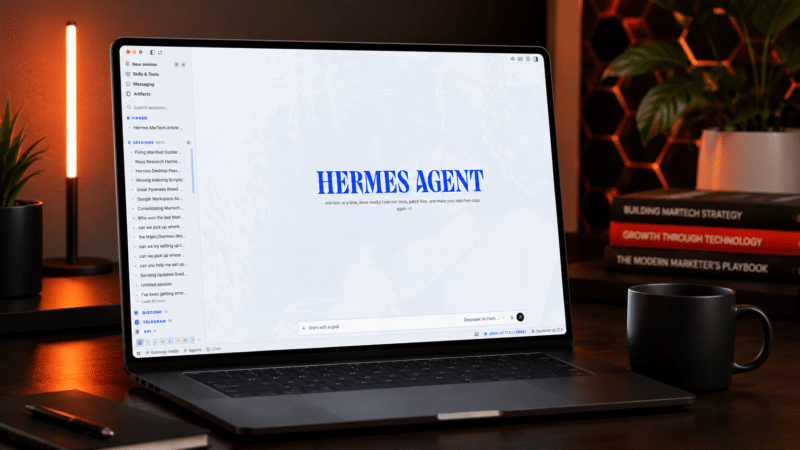
This is the third in a three-part series on reducing the cost of AI-powered marketing workflows. Part 1 introduced the problem of token consumption and the case for keeping your context under your control. Part 2 explained the architecture behind that approach. This one walks through installing Hermes Desktop, connecting it to an AI model, creating your first skill, and running your first task.
Hermes Desktop runs on macOS, Windows, and Linux. Download the latest release from the Hermes Agent website and install it as you would any desktop application. The installer includes the desktop interface and the agent runtime, so there is nothing else to install before getting started.
The first decision Hermes asks you to make is where to store your local context.
The context store contains your conversation history, tool outputs, embeddings, and other information the agent accumulates over time. By default, Hermes creates it in your home directory, but you can change the location during setup or later in the application settings.
For individual use, the default location is usually sufficient. If you’re working with a team, you might choose a synchronized cloud folder, a shared network drive, or dedicated local storage so your data is backed up and easier to manage.
Unlike most AI chat applications, this information remains under your control. The LLM provider only receives the information needed to answer each request. Your complete working history stays in your storage.
The SEO toolkit you know, plus the AI visibility data you need.

Connect a model provider
Next, connect Hermes to an LLM provider. Hermes is provider-agnostic, meaning it can work with OpenAI, Anthropic, Google, Meta models, self-hosted models, or any compatible API endpoint. During setup, you’ll choose a provider and supply the appropriate API credentials.
The easiest option is OpenRouter. An OpenRouter API key grants access to dozens of models through one account, allowing you to switch between providers without changing your workflow. Create an OpenRouter account, generate an API key, then paste it into the Hermes provider settings. The free tier is sufficient for experimentation.
If you already have an API key for OpenAI, Anthropic, Google Gemini, or a self-hosted model such as LLaMA, you can enter those credentials instead. Once the connection is established, select the model you want Hermes to use as its default.
Create your first skill
Skills are one of the central concepts in Hermes.
A skill is a reusable reference document that the agent can consult. Typical marketing skills include brand voice guidelines, editorial style guides, messaging frameworks, campaign briefs, audience personas, competitive positioning documents, and standard operating procedures.
There are two ways to create a skill.
The simplest is to use the /learn command inside the chat interface. Provide Hermes with the reference material you want it to learn — for example, upload your brand voice guide or paste its contents into the conversation—and ask it to create a skill. You can write a prompt like:
/learn Create a reusable skill from these brand voice guidelines for future email campaigns.
Hermes analyzes the material, converts it into a structured skill, and automatically saves it to your skills folder.
The second option is to create the skill yourself. Write the reference material as a Markdown document and place it directly into the Skills folder on your filesystem. The next time Hermes starts—or after refreshing the Skills panel—the new skill becomes available for use.
In the Desktop application, the Skills panel displays every available skill. Enable the ones you want the agent to use for the current task and disable those that aren’t relevant.
Over time, your skill library becomes one of your most valuable assets. Instead of repeatedly copying brand guidelines or campaign instructions into every prompt, Hermes reuses the appropriate skill whenever it applies.
Run your first task
Once your model provider is connected and at least one skill is enabled, you’re ready to use Hermes.
Open the chat interface and enter a straightforward marketing task, such as:
Draft five email subject lines for our upcoming product launch using the Brand Voice skill.
Hermes loads the relevant skill, combines it with your request, sends the prompt to the selected model, and returns the completed draft.
Continue refining the output through normal conversation. Because the conversation history is stored in your local context store, Hermes maintains context throughout the session without requiring you to repeat earlier instructions.
Try additional tools
Hermes can do more than generate text.
Depending on the tools you’ve enabled, you can ask it to:
- Search the web.
- Analyze CSV files.
- Generate images.
- Read local documents.
- Call external APIs.
- Execute Python code.
- Automate multi-step workflows.
The experience is the same regardless of the task. You interact through a single chat interface while Hermes coordinates the necessary tools behind the scenes.
Verify where your data is stored
One advantage of Hermes is that your working data remains accessible.
Open the folder you selected as your context store, and you’ll find your saved conversations, tool outputs, embeddings, and other supporting files. Your skills folder contains the reusable reference documents you’ve created or imported.
Because these assets live on your system rather than inside a provider’s application, changing model providers doesn’t affect them. If you decide to switch from OpenRouter to Anthropic or from a hosted model to a self-hosted LLaMA deployment, your skills, conversation history, and context remain intact. You only need to update the provider settings.
Scaling beyond the desktop
Hermes Desktop is designed to help individuals get started quickly, but the same architecture scales to larger deployments.
The runtime can also operate through a command-line interface, inside Docker containers, or as a remote API server serving an entire team. The skills, context store, and workflows you build in the desktop application transfer directly to those environments.
For most marketers, the desktop application is the easiest place to begin. Once you’ve built a useful skill library and experienced how local context reduces repeated prompting and unnecessary token usage, you’ll have a solid foundation for deciding whether a larger deployment makes sense for your organization.
The post Getting started with Hermes Agent Desktop appeared first on MarTech.